Why add it to your Home Screen? You can open the reading plan from a browser link anytime, but adding it to your Home Screen gives you one-tap access, works better offline, and helps reminders reach you more reliably — especially on Android.
Open your church's reading plan link in Safari
Safari is required on iPhone for adding the app to your Home Screen and allowing reminders.
If the link opened inside Gmail, Facebook, GroupMe, or another app, copy the URL and paste it into Safari instead.
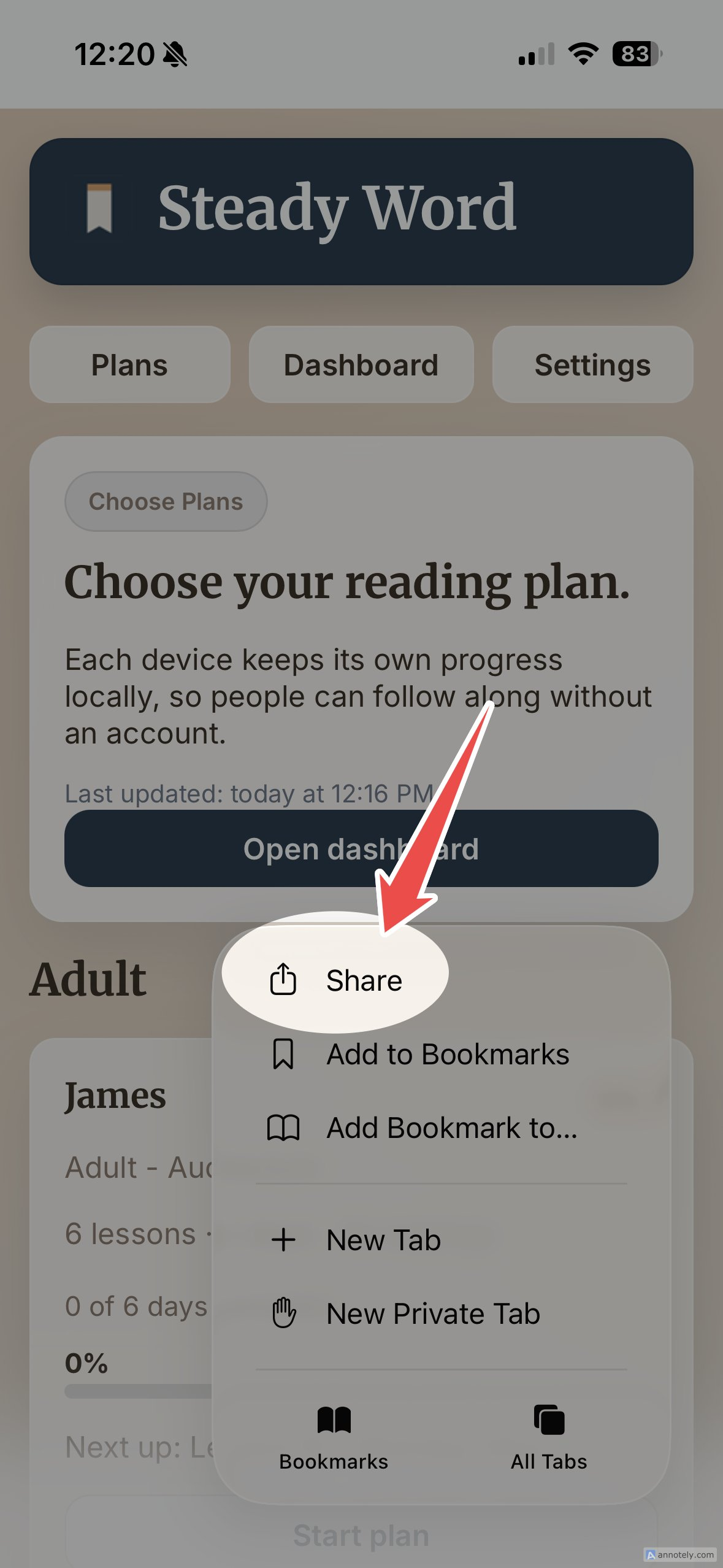
Tap Share, then "Add to Home Screen"
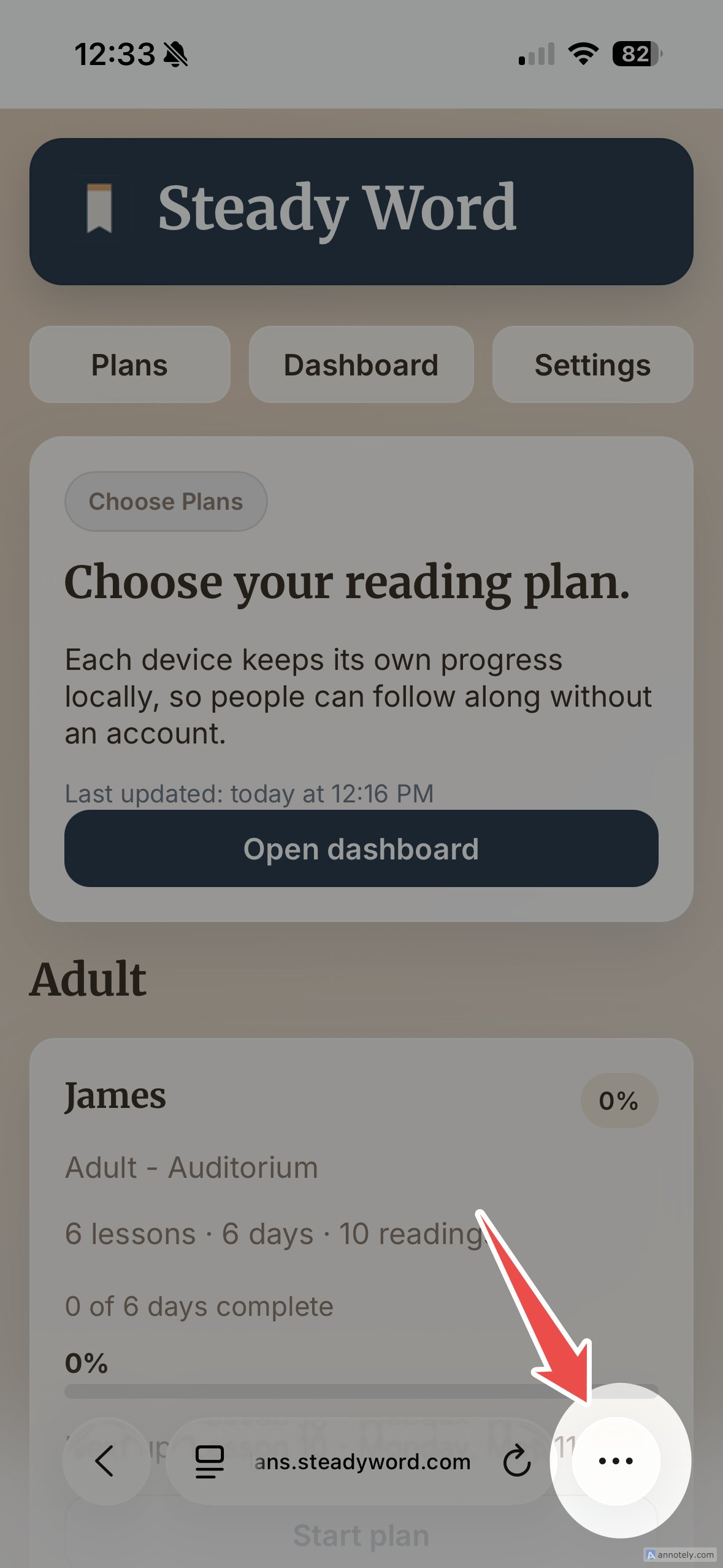
In Safari, tap the ••• menu button in the bottom-right corner, then tap Share. On some Safari layouts, you may see the ⬆ Share button directly in the toolbar.
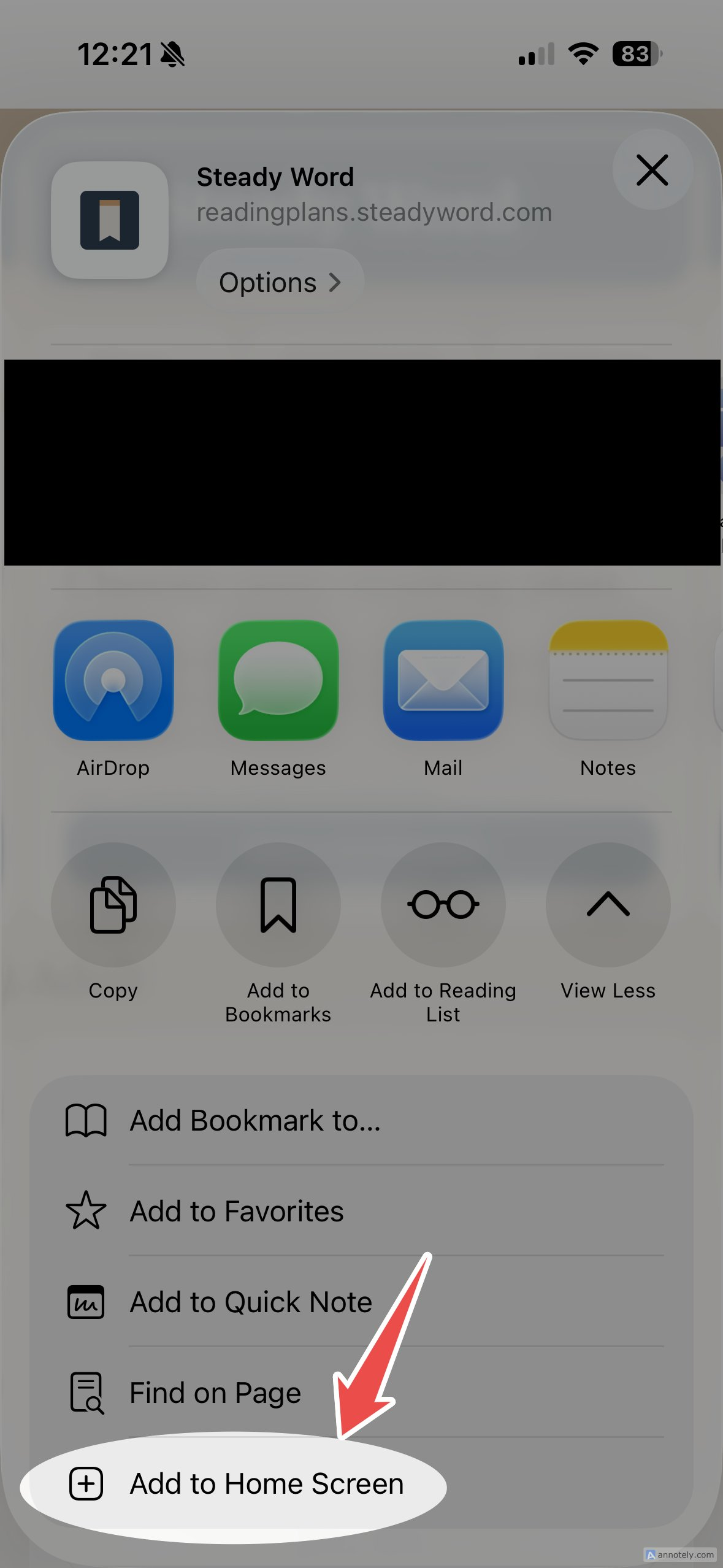
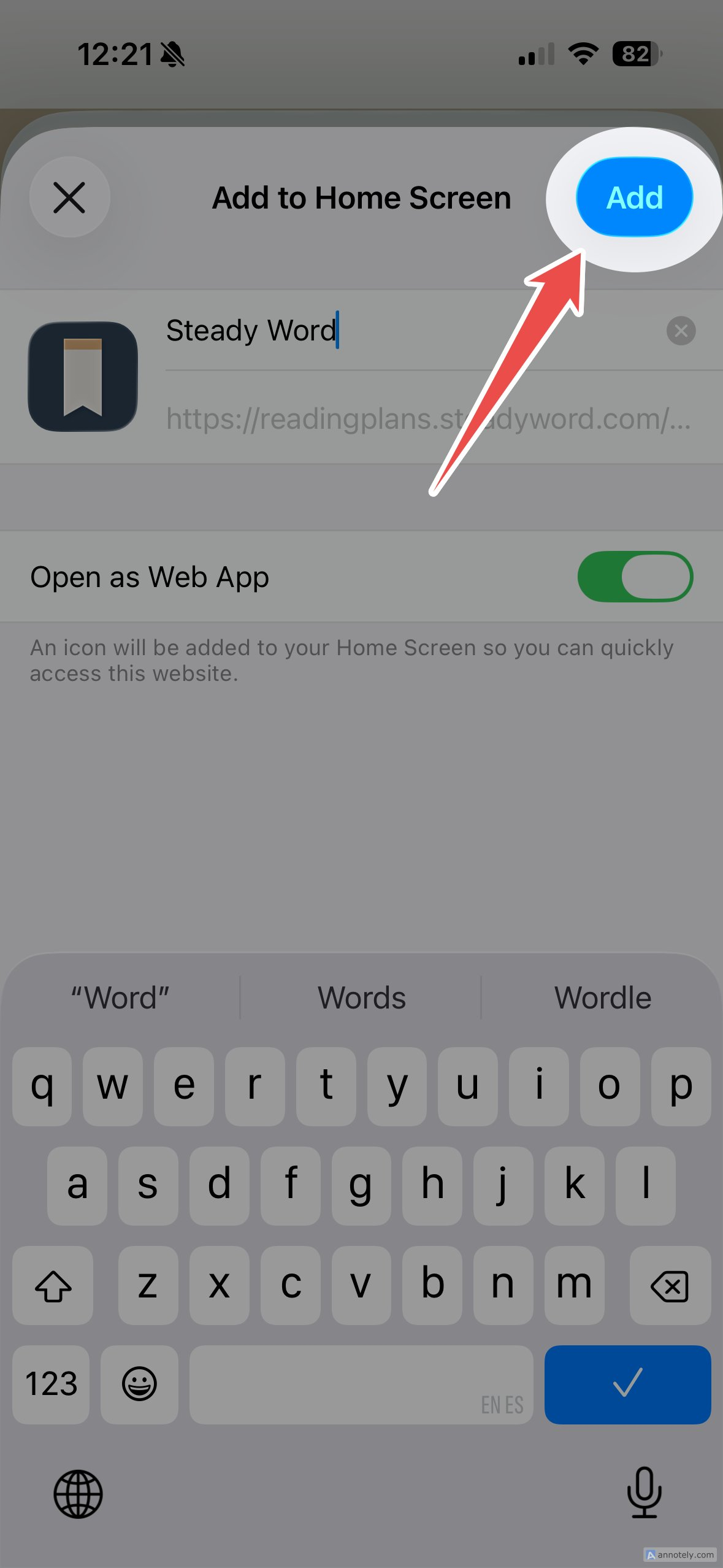
Scroll down in the sheet that appears and tap + Add to Home Screen, then tap Add in the top right to confirm.
Follow the four taps below. Tap any image to enlarge.
Your app name and icon may look different depending on your church's reading plan.
Open from your Home Screen and allow reminders
Find your church's reading plan icon on your Home Screen and tap it to open. If reminders are available, you'll be asked whether to allow notifications — tap Allow to enable them.
Open your church's reading plan link in Chrome
Installation works best in Chrome on Android. If the link opened inside Gmail, Facebook, GroupMe, or another app, copy the URL and paste it into Chrome instead.
Add to your Home Screen
Chrome may show an + Add to Home Screen prompt at the bottom of the screen automatically — tap it to install.
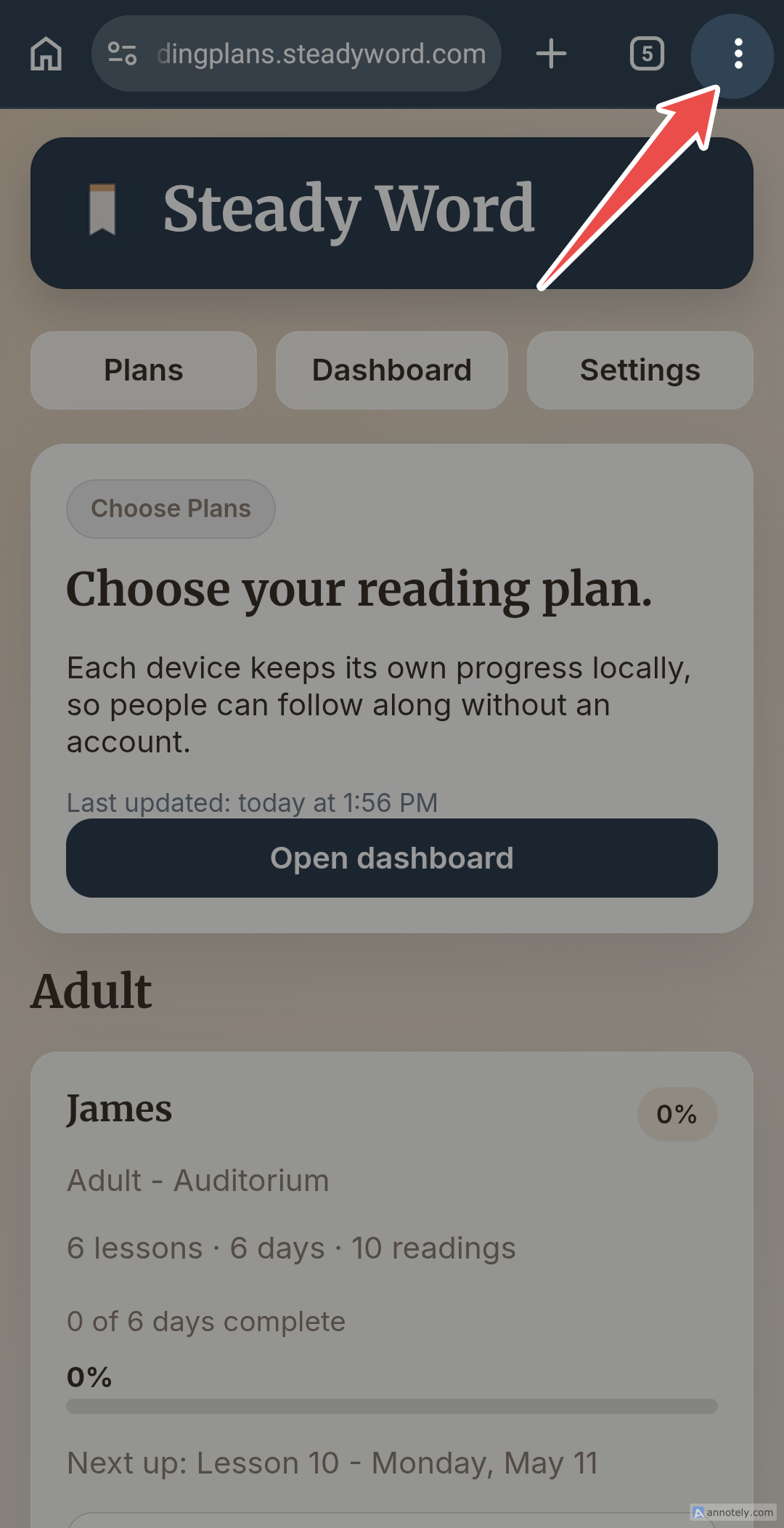
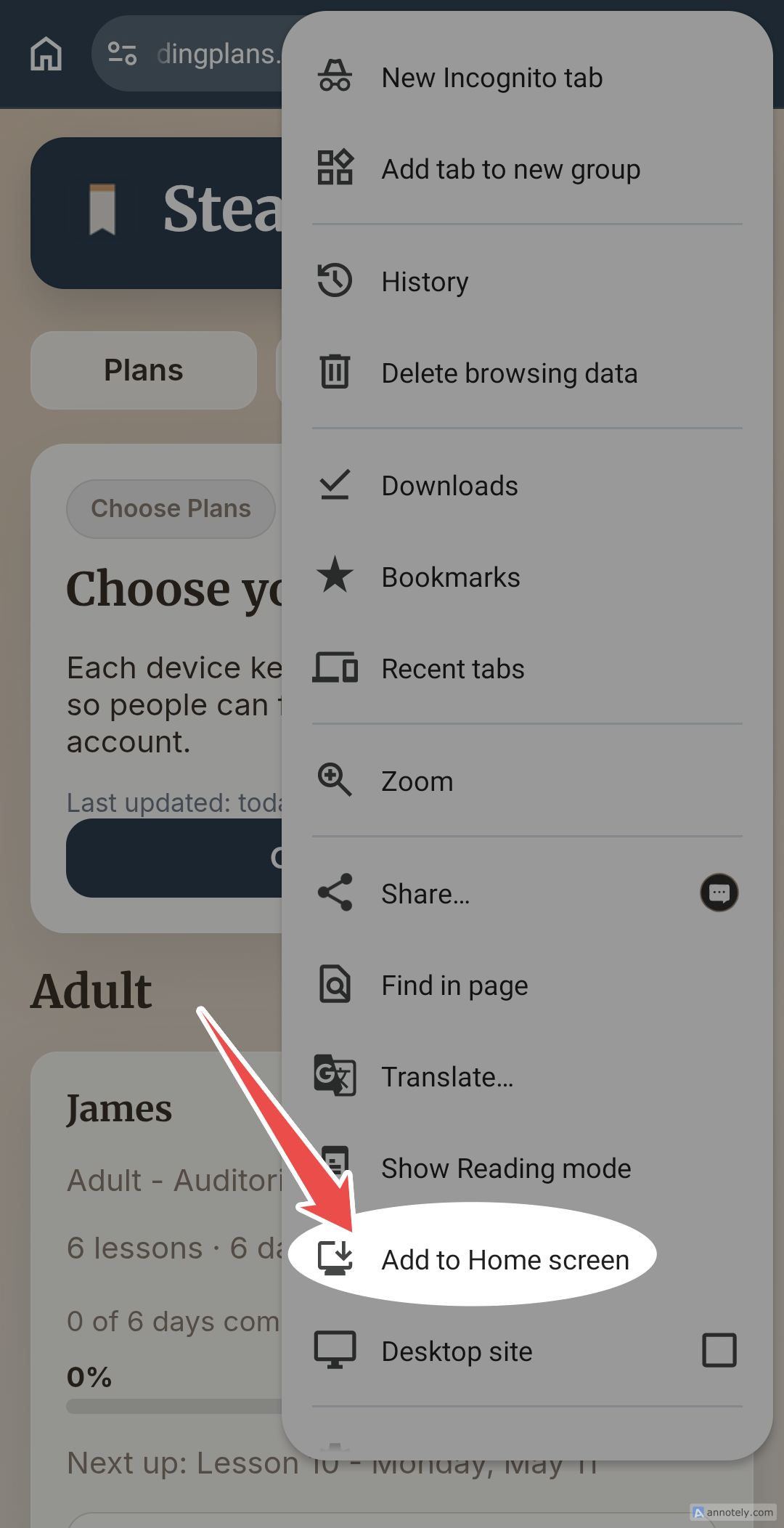
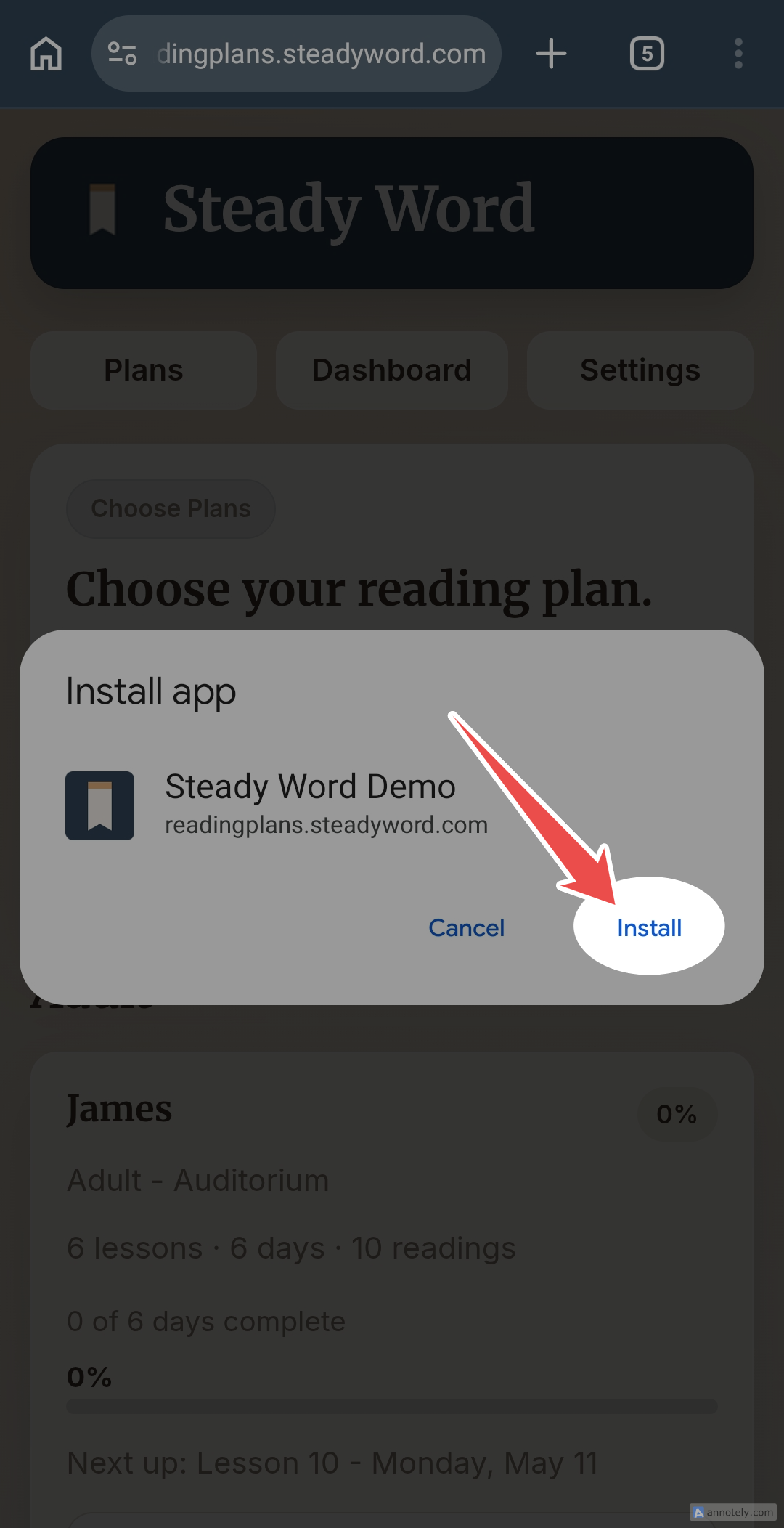
If the prompt doesn't appear, tap the ⋮ menu in the top right corner of Chrome and select "Add to Home screen" or "Install app," then confirm.
Follow the three taps below. Tap any image to enlarge.
Your app name and icon may look different depending on your church's reading plan.
Open from your Home Screen and allow reminders
Tap your church's reading plan icon on your Home Screen to open. Allow notifications when asked if your church has reminders set up.
Help reminders reach you reliably
Android phones apply battery management that can delay notifications. To keep reminders on schedule, open your device Settings, find the reading plan app and Chrome in your apps list, and set Battery usage to Unrestricted (or "No restrictions") for both.
Samsung phones: There's a second setting to check. Go to Settings → Battery and device care → Battery → Background usage limits and add the reading plan app to Never sleeping apps. This is separate from battery optimization and easy to overlook.
When you finish reading, press the home button rather than swiping the app away from your recent apps — some Android phones treat a swipe-away as a signal to stop background activity.
Common questions
I'm not getting reminders
Check that notifications are allowed in your device settings. On Android, set battery usage to "Unrestricted" for both the reading plan app and Chrome. Samsung users: also go to Battery → Background usage limits and add the reading plan app to Never sleeping apps.
I don't know my church's reading plan link
Use the link your church shared with you — in a bulletin, text, or email. If you can't find it, contact your church administrator.
The plan isn't showing today's reading
Open the app while connected to the internet to sync the latest plans. Once synced, readings are available offline.
The link opened inside another app
If the page opened inside Gmail, Facebook, GroupMe, or another in-app browser, open the link in Safari on iPhone or Chrome on Android. You may need to copy the link and paste it into the browser.
Do I need to create an account?
No. The reading plan doesn't require an account or login. Your reading progress is saved on your device.
I don't see "Add to Home Screen"
On iPhone, make sure you're using Safari — not Chrome or another browser. On Android, try the three-dot menu in Chrome if the automatic prompt doesn't appear.
Still stuck? Contact your church administrator and ask for the reading plan link.